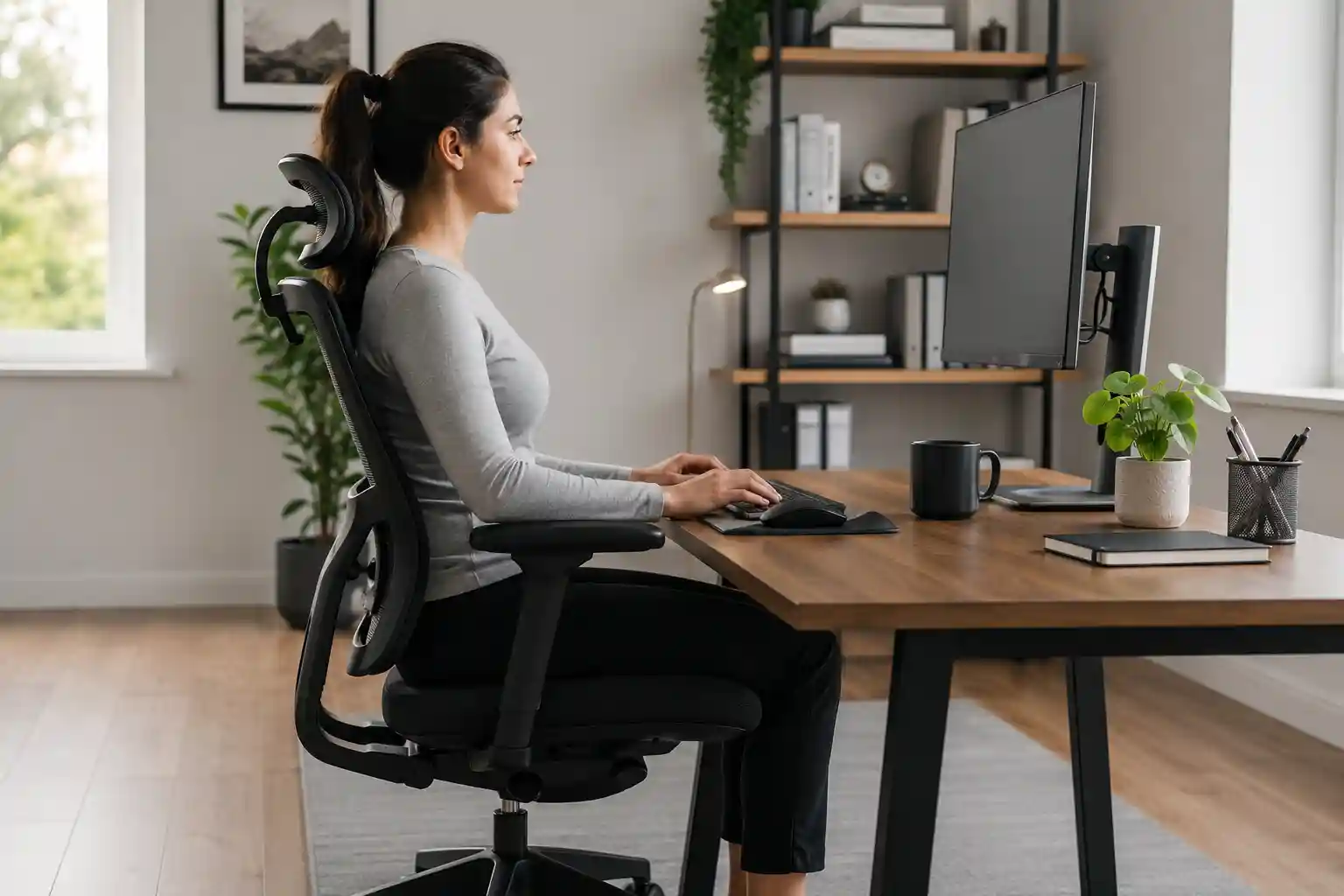
Have you ever finished a workday with a stiff neck, sore shoulders, or an aching lower back? You’re not alone. Millions of office workers, remote employees, students, programmers, and gamers spend 6–10 hours sitting every day. Unfortunately, poor posture can quietly lead to chronic discomfort, fatigue, and reduced productivity.
The good news is that you don’t need expensive equipment or complicated exercises to improve your comfort. Following a simple Ergonomic Sitting Checklist can help you maintain a healthier posture, reduce strain on your muscles and joints, and make long workdays much more comfortable.
Whether you work from home or in a corporate office, this guide will walk you through the essential ergonomic sitting habits recommended by workplace health experts. By making a few small adjustments today, you can help prevent back pain, neck stiffness, shoulder tension, and even improve your focus throughout the day.
What Is an Ergonomic Sitting Checklist?
An ergonomic sitting checklist is a simple guide that helps you maintain the correct sitting posture while working at a desk. It covers everything from chair height and monitor placement to arm position, foot support, and healthy sitting habits.
Instead of trying to remember dozens of posture rules, you can use this checklist as a quick daily reminder to create a comfortable and supportive workstation.
Why Does It Matter?
Poor sitting posture puts unnecessary stress on your spine, muscles, and joints. Over time, this can contribute to:
- Lower back pain
- Neck stiffness
- Shoulder tension
- Wrist discomfort
- Poor circulation
- Fatigue
- Reduced concentration
Using a desk ergonomics checklist helps distribute your body weight evenly, supports the natural curves of your spine, and reduces muscle strain during long working hours.
Who Should Use This Checklist?
This guide is helpful for anyone who spends several hours sitting each day, including:
- Remote workers
- Office employees
- College students
- Programmers
- Graphic designers
- Gamers
- Writers
- Customer support professionals
- Anyone experiencing back or neck pain
Even if you already own an ergonomic office chair, your posture still matters. Proper chair adjustment and healthy sitting habits work together to create a comfortable workspace.
Benefits of Following an Ergonomic Sitting Checklist
Making small ergonomic improvements can have a surprisingly big impact on your daily comfort and productivity.
Better Sitting Posture
Good posture keeps your spine properly aligned and reduces unnecessary pressure on your muscles and joints.
Less Back Pain
Maintaining the correct sitting position helps support your lower back and reduces stress on the lumbar spine.
Reduced Neck and Shoulder Strain
When your monitor, chair, and keyboard are positioned correctly, your neck and shoulders remain relaxed instead of constantly working to support poor posture.
Better Blood Circulation
Keeping your knees and hips in the proper position helps improve circulation and reduces numbness in your legs during long work sessions.
Higher Productivity
When you’re comfortable, you spend less time adjusting your position or dealing with discomfort and more time focusing on your work.
Less Fatigue
Poor posture forces your muscles to work harder throughout the day. Good ergonomics conserve energy and help you stay comfortable longer.
Improved Focus
Physical discomfort is distracting. A properly adjusted workstation makes it easier to concentrate and maintain productivity.
The Complete Ergonomic Sitting Checklist
1. Keep Your Feet Flat on the Floor
One of the most overlooked parts of proper sitting posture at a desk is foot placement.
Your feet should rest completely flat on the floor throughout the day. This creates a stable base that supports your entire body and helps maintain good spinal alignment.
Why It Matters
When your feet dangle or rest on chair legs, pressure increases under your thighs, reducing circulation and causing discomfort.
Flat feet also help stabilize your pelvis, which supports a healthier sitting posture.
Common Mistakes
- Sitting with feet tucked under the chair
- Resting on tiptoes
- Crossing ankles for long periods
- Letting feet hang
Practical Tip
If your chair is too high, use a footrest instead of lowering your chair until your desk becomes uncomfortable.
2. Keep Your Knees at About 90 Degrees
Your knees should form roughly a right angle while sitting.
This position allows your legs to relax naturally while improving circulation.
Why It Matters
A 90-degree knee angle reduces pressure on the joints and minimizes muscle fatigue during long work sessions.
Common Mistakes
- Knees higher than hips
- Legs stretched too far forward
- Sitting too low
Practical Tip
Adjust your chair height so your thighs remain nearly parallel to the floor.
3. Keep Your Hips Slightly Higher Than Your Knees
Many ergonomics specialists recommend sitting with your hips just a little higher than your knees.
Why It Matters
This slight angle helps maintain your spine’s natural curve while reducing pressure on your lower back.
It also makes sitting more comfortable for extended periods.
Common Mistakes
- Sitting too low
- Slouching backward
- Leaning heavily into the chair
Practical Tip
Raise your chair just enough so your hips remain slightly above knee level while keeping your feet flat.
4. Maintain the Natural Curve of Your Lower Back
Your lower back naturally curves inward. Maintaining this curve is essential for healthy sitting posture.
Why It Matters
Flattening or rounding your lower back places excessive stress on the spinal discs and surrounding muscles.
Proper lumbar support keeps your spine in a healthier position throughout the workday.
Common Mistakes
- Slouching
- Sitting on the edge of the chair
- Leaning forward constantly
Practical Tip
Sit fully back in your chair so your lower back remains supported.
Related Guide: Best Chair for Back Pain
Struggling with lower back pain during long study or work sessions? Explore our expert guide to the best ergonomic chairs designed to improve posture and reduce back strain.
Read Full Guide5. Use Lumbar Support
Lumbar support fills the gap between your lower back and the chair.
Many modern ergonomic office chairs include adjustable lumbar support.
Why It Matters
Without lumbar support, your spine gradually rounds forward, increasing lower back strain.
Proper lumbar support encourages better ergonomic sitting posture with minimal effort.
Common Mistakes
- Ignoring lumbar adjustment
- Using cushions that are too thick
- Sitting away from the backrest
Practical Tip
Adjust lumbar support until it fits comfortably into the natural curve of your lower back.
6. Keep Your Shoulders Relaxed
Many people unknowingly raise their shoulders while typing.
This creates unnecessary tension throughout the neck and upper back.
Why It Matters
Relaxed shoulders reduce muscle fatigue and help prevent tension headaches.
Common Mistakes
- Hunching shoulders
- Reaching for the keyboard
- Sitting too far from the desk
Practical Tip
Let your shoulders fall naturally instead of forcing them back or lifting them upward.
7. Keep Your Elbows Close to Your Body
Your arms should stay comfortably near your sides while working.
Why It Matters
Keeping elbows close minimizes shoulder strain and makes typing feel more natural.
Common Mistakes
- Stretching arms forward
- Reaching sideways for the mouse
- Wide arm positioning
Practical Tip
Move your keyboard and mouse closer so your elbows remain comfortably beside your body.
8. Keep Your Elbows Around 90 Degrees
Your elbows should bend naturally at approximately 90 degrees while typing.
This is one of the most important parts of any office chair posture checklist.
Why It Matters
Proper elbow positioning reduces strain on the shoulders, wrists, and forearms while improving typing comfort.
Common Mistakes
- Chair too low
- Desk too high
- Keyboard placed too far away
Practical Tip
Adjust your chair so your forearms stay nearly parallel with the floor while typing comfortably.
9. Keep Your Wrists Straight While Typing
Your wrists should remain in a neutral, straight position while typing or using your mouse. They should not bend upward, downward, or sideways for long periods.
Why It Matters
Bent wrists increase pressure on the tendons and nerves that pass through the wrist. Over time, this can contribute to discomfort, fatigue, and repetitive strain injuries such as carpal tunnel syndrome.
Common Mistakes
- Resting wrists on the edge of the desk while typing
- Keyboard placed too high
- Mouse positioned far away
- Bending wrists upward
Practical Tip
Keep your keyboard at elbow height and let your hands “float” lightly while typing. Use a wrist rest only during breaks—not while actively typing.
10. Position Your Monitor at Eye Level
Your monitor should be directly in front of you, with the top of the screen at or slightly below eye level.
Why It Matters
A monitor that’s too low forces you to bend your neck forward, increasing strain on the cervical spine and shoulders.
Common Mistakes
- Looking down at a laptop all day
- Monitor placed too high
- Turning your neck to one side
Practical Tip
Raise your monitor using a monitor arm, stand, or a stack of sturdy books if necessary.
11. Keep the Screen About an Arm’s Length Away
A comfortable viewing distance is approximately 20–30 inches (50–75 cm), or roughly one arm’s length.
Why It Matters
Sitting too close can cause eye strain, while sitting too far away encourages leaning forward.
Common Mistakes
- Face too close to the monitor
- Leaning toward the screen
- Squinting because text is too small
Practical Tip
Increase text size instead of moving closer to the monitor.
12. Keep Your Keyboard and Mouse Close
Your keyboard and mouse should be within easy reach without stretching your arms.
Why It Matters
Reaching forward repeatedly puts unnecessary stress on the shoulders, elbows, and upper back.
Common Mistakes
- Keyboard pushed too far away
- Mouse placed outside shoulder width
- Frequently reaching across the desk
Practical Tip
Leave just enough space in front of the keyboard for your palms during short breaks.
13. Change Your Sitting Position Every 30–60 Minutes
Even perfect posture becomes uncomfortable if maintained for too long.
Why It Matters
Changing positions improves circulation, reduces muscle fatigue, and prevents stiffness.
Common Mistakes
- Sitting in one position for several hours
- Ignoring discomfort
- Forgetting to move during busy work
Practical Tip
Set a timer or use a reminder app to encourage regular movement throughout the day.
14. Stand and Stretch Regularly
Short movement breaks are one of the simplest ways to improve workstation ergonomics.
Why It Matters
Standing and stretching relaxes tight muscles, improves circulation, and gives your spine a break from continuous sitting.
Common Mistakes
- Skipping breaks
- Working through lunch
- Remaining seated during phone calls
Practical Tip
Every hour, stand for two to five minutes. Walk around, stretch your shoulders, neck, hips, and legs.
15. Drink Enough Water During Work
Hydration is an often-overlooked part of healthy sitting habits.
Why It Matters
Proper hydration supports muscle function, reduces fatigue, and naturally encourages more frequent standing breaks.
Common Mistakes
- Drinking only coffee
- Forgetting water until feeling thirsty
- Avoiding water to reduce restroom visits
Practical Tip
Keep a reusable water bottle on your desk and refill it throughout the day.
Office Chair Adjustment Checklist
Even the best ergonomic office chair won’t help if it’s adjusted incorrectly. Spend a few minutes setting up your chair properly.
Looking for the Best Office Chair Under $300?
Want premium comfort without spending a fortune? Explore our expert roundup of the Best Office Chair Under $300, featuring ergonomic chairs with excellent lumbar support, adjustable features, durable construction, and outstanding value for your home office or workspace.
Read: Best Office Chair Under $300 →Seat Height
Adjust the chair so:
- Feet rest flat on the floor
- Knees stay around 90°
- Thighs remain parallel to the floor
A chair that’s too high reduces circulation, while one that’s too low increases pressure on the hips.
Seat Depth
There should be about 2–3 inches (5–8 cm) between the front edge of the seat and the back of your knees.
Too Deep
- Difficult to use lumbar support
- Pressure behind knees
Too Shallow
- Less thigh support
- Increased pressure on hips
Lumbar Support
Position the lumbar support so it fits comfortably into the natural curve of your lower back.
You shouldn’t feel pushed too far forward or left without support.
Armrests
Proper armrests should:
- Support your forearms lightly
- Keep shoulders relaxed
- Allow elbows to remain near 90°
If armrests prevent you from sitting close to the desk, lower them or move them out of the way.
Headrest
A headrest should support the back of your head during reclining—not while you’re leaning forward to work.
Adjust it so your neck stays relaxed when taking breaks.
Tilt Tension
The chair should recline smoothly without feeling too loose or too stiff.
Adjust the tension according to your body weight.
Recline Angle
Many ergonomics experts recommend a slight recline of 100–110 degrees rather than sitting perfectly upright all day.
A gentle recline reduces pressure on the lower back while maintaining good posture.
Related Guide: Ergonomic Desk Setup Guide
Build the perfect ergonomic workspace for studying and productivity. Discover the ideal desk height, monitor position, keyboard setup, and posture tips.
View Desk Setup GuideCommon Ergonomic Mistakes
Even people with expensive office chairs often develop poor sitting habits.
Here are some of the most common mistakes to avoid.
Crossing Your Legs
Crossing your legs occasionally isn’t harmful, but doing it for hours may:
- Affect circulation
- Tilt your pelvis
- Encourage uneven posture
Instead, keep both feet flat on the floor whenever possible.
Leaning Forward
Leaning toward your monitor places significant stress on your neck and lower back.
Move the monitor closer instead of moving your body closer.
Rounded Shoulders
Rounded shoulders tighten the chest muscles while weakening the upper back.
Keep your shoulders relaxed and your chest comfortably open.
Looking Down at a Laptop
Using a laptop directly on a desk often causes constant neck flexion.
A laptop stand combined with an external keyboard and mouse creates a much healthier setup.
No Lumbar Support
Without lower back support, most people naturally slouch after only a short period.
Use your chair’s built-in lumbar adjustment or an ergonomic lumbar cushion if needed.
Chair Too High
A chair that’s too high causes:
- Feet hanging
- Pressure under thighs
- Poor circulation
Lower the chair or use a footrest.
Chair Too Low
A chair that’s too low can cause:
- Hips below knees
- Rounded lower back
- Increased spinal pressure
Raise the seat until your hips are slightly higher than your knees.
Monitor Too Low
A low monitor is one of the biggest causes of neck pain.
The top of the screen should be approximately at eye level.
Best Office Chair Features for Good Ergonomics
If you’re shopping for a new chair, prioritize features that support long-term comfort instead of focusing only on appearance.
Adjustable Lumbar Support
Allows personalized lower back support for different body types.
Seat Depth Adjustment
Helps users of different heights achieve proper thigh support.
Waterfall Seat Edge
A gently curved seat edge reduces pressure behind the knees and improves circulation.
Breathable Mesh Back
Mesh keeps air flowing, reducing heat buildup during long work sessions.
It’s especially helpful in warm climates or home offices without strong air conditioning.
Adjustable Armrests
Look for armrests that adjust in:
- Height
- Width
- Depth
- Angle (4D armrests are ideal)
Adjustable Headrest
Useful for people who frequently recline during reading, meetings, or breaks.
Smooth Recline Mechanism
Dynamic reclining encourages movement throughout the day instead of locking you into one posture.
Appropriate Weight Capacity
Choose a chair rated comfortably above your body weight for better durability, safety, and performance.
Ergonomic Desk Setup Checklist
Your chair is only one part of a healthy workstation. The rest of your desk should support good posture too.
| Workspace Element | Recommended Position |
|---|---|
| Desk Height | Around elbow height when seated |
| Monitor Height | Top of screen at eye level |
| Monitor Distance | 20–30 inches away |
| Keyboard | Directly in front of you |
| Mouse | Close to keyboard |
| Footrest | Use if feet don’t reach the floor |
| Lighting | Bright enough to reduce eye strain without glare |
| Cable Management | Keep cables organized to maximize legroom and reduce clutter |
A well-organized ergonomic office setup makes it easier to maintain proper posture throughout the day.
Quick 2-Minute Daily Ergonomic Self-Check
Print this checklist or save it as a daily reminder. Spending just two minutes reviewing your workstation can help reinforce healthy habits and reduce the risk of discomfort over time.
| ✔ | Ergonomic Check | Yes | No |
|---|---|---|---|
| ☐ | My feet are flat on the floor or on a footrest. | ☐ | ☐ |
| ☐ | My knees are bent at about 90°. | ☐ | ☐ |
| ☐ | My hips are slightly higher than my knees. | ☐ | ☐ |
| ☐ | My lower back is supported by the chair’s lumbar support. | ☐ | ☐ |
| ☐ | My shoulders are relaxed, not raised or rounded. | ☐ | ☐ |
| ☐ | My elbows stay close to my body at about 90°. | ☐ | ☐ |
| ☐ | My wrists stay straight while typing. | ☐ | ☐ |
| ☐ | My monitor is at eye level. | ☐ | ☐ |
| ☐ | My monitor is about an arm’s length away. | ☐ | ☐ |
| ☐ | My keyboard and mouse are within easy reach. | ☐ | ☐ |
| ☐ | I change my sitting position every 30–60 minutes. | ☐ | ☐ |
| ☐ | I stand up and stretch every hour. | ☐ | ☐ |
| ☐ | I drink enough water during the workday. | ☐ | ☐ |
| ☐ | My desk is organized and free from clutter. | ☐ | ☐ |
| ☐ | My workstation feels comfortable throughout the day. | ☐ | ☐ |
Pro Tip: If you answer “No” to three or more items, take five minutes to adjust your workstation before continuing work.
Frequently Asked Questions (FAQ Schema Ready)
1. What is the correct ergonomic sitting position?
The correct ergonomic sitting position keeps your feet flat on the floor, knees bent at about 90 degrees, hips slightly higher than your knees, and your lower back supported. Your shoulders should stay relaxed, elbows close to your body at roughly 90 degrees, wrists straight, and your monitor positioned at eye level. This posture helps reduce strain on your back, neck, shoulders, and wrists.
2. How often should I stand up while working?
Experts generally recommend standing up or moving every 30 to 60 minutes. Even a two- to five-minute break can improve circulation, reduce muscle stiffness, and give your spine a chance to recover from prolonged sitting. Walking during phone calls or stretching between tasks are simple ways to stay active.
3. Is sitting with crossed legs bad?
Occasionally crossing your legs is usually fine. However, keeping your legs crossed for long periods may encourage uneven posture, reduce circulation, and place extra stress on your hips and lower back. For most of your workday, keep both feet flat on the floor or on a footrest.
4. Should knees be higher than hips?
Ideally, your hips should be slightly higher than your knees. This position supports the natural curve of your lower back and reduces pressure on your spine. If your knees are higher than your hips, consider raising your chair while ensuring your feet remain properly supported.
5. Do ergonomic office chairs really help?
Yes. A well-designed ergonomic chair can improve comfort by providing adjustable lumbar support, seat height, armrests, and reclining functions. However, even the best chair cannot replace healthy sitting habits. Regular movement, proper workstation setup, and good posture are equally important.
6. Can an ergonomic workstation reduce back and neck pain?
A properly adjusted ergonomic workstation can significantly reduce the strain that contributes to back, neck, shoulder, and wrist discomfort. While it may not treat medical conditions, it can help prevent posture-related pain and improve comfort during long hours of sitting.
Final Thoughts
Good posture isn’t about sitting perfectly still all day—it’s about creating a workspace that supports your body and encourages regular movement.
This Ergonomic Sitting Checklist is designed to help you build healthier daily habits one step at a time. You don’t have to change everything at once. Start by adjusting your chair, monitor, and keyboard, then focus on moving more often and maintaining a comfortable sitting position.
Over time, these small improvements can make a noticeable difference in your comfort, energy levels, and productivity.
If you’re using an old or poorly designed chair, upgrading to a quality ergonomic office chair with adjustable lumbar support, armrests, and seat settings may further improve your workstation. Choose a chair that fits your body and work style rather than simply selecting the most expensive option.
Remember, the best ergonomic setup is the one you adjust to fit you.
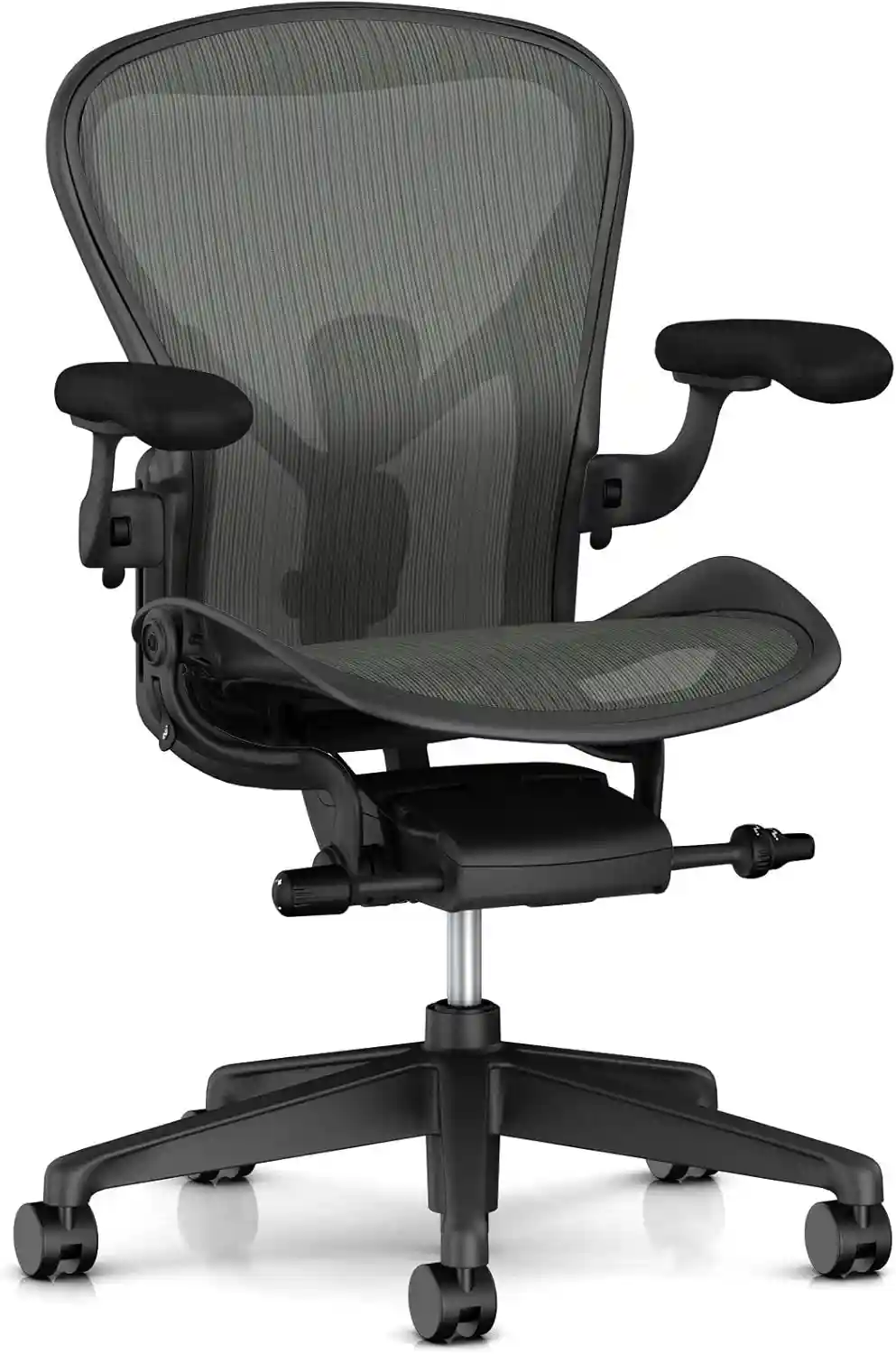
Upgrade Your Workspace with an Ergonomic Office Chair
Following an ergonomic sitting checklist is important—but the right office chair makes maintaining good posture much easier. A quality ergonomic chair provides proper lumbar support, adjustable armrests, seat height, reclining features, and all-day comfort to help reduce back, neck, and shoulder pain during long work hours.
- ✔ Adjustable Lumbar Support
- ✔ Breathable Mesh Back
- ✔ Adjustable Armrests
- ✔ Reclining Backrest
- ✔ Comfortable for 8–10 Hour Workdays
- ✔ Excellent for Home & Office Use
As an Amazon Associate, we may earn from qualifying purchases at no extra cost to you.
How ergonomic is your current workspace?
Take the 2-minute checklist above and see how many items you can check off today. If you found this guide helpful, explore our related resources on choosing the best ergonomic office chair, improving your desk setup, and preventing back pain while working. Small adjustments today can lead to greater comfort and healthier work habits for years to come.