Affiliate Disclosure: This article may contain affiliate links. If you purchase through a qualifying link, we may earn a commission at no additional cost to you. Our recommendations are based on product features, specifications, adjustability, and overall suitability for a dual-monitor workstation.
The Dual-Monitor Problem
Two monitors can make a home office much more productive. You can keep email or reference material on one screen while working on documents, code, spreadsheets, video timelines, trading charts, or design software on the other.
But there is a downside: a poorly arranged dual-monitor workstation can encourage awkward sitting.
You may find yourself constantly turning your head toward the second screen, leaning forward to read small text, reaching too far for the mouse, or sitting at an angle for hours. Eventually, even a good office chair can feel uncomfortable if the desk and monitors are positioned incorrectly.
That is why choosing the best office chair for dual monitor setup is about more than padding or appearance.
The right chair should allow you to adjust your sitting position so your chair, desk, keyboard, mouse, and monitors work together. Adjustable seat height, seat depth, lumbar support, armrests, and recline can make it easier to create a workstation that fits your body.
Just remember: a chair does not create an ergonomic workstation by itself. Monitor placement, desk height, viewing distance, keyboard position, and regular movement matter too.
Quick Answer: What Makes a Chair Good for Dual Monitors?
The best ergonomic chair for a dual monitor setup should offer enough adjustment to fit both your body and your desk.
Look for:
- Adjustable seat height
- Adjustable seat depth
- Supportive backrest
- Adjustable lumbar support
- Adjustable armrests
- Comfortable seat cushion or suspension
- Useful recline and tilt controls
- Stable five-star base
- Appropriate weight capacity
- A warranty and reasonable return policy
Adjustability is usually more important than price. A $1,000 chair is not automatically better for you than a $300 chair if the cheaper model fits your body and workstation better.
Quick Comparison: 5 Office Chairs for Dual-Monitor Setups
Compare our top office chair picks for programmers, remote workers, designers, and anyone spending long hours at a two-monitor workstation.
| Chair | Best For | Key Features | Price | Check Price |
|---|---|---|---|---|
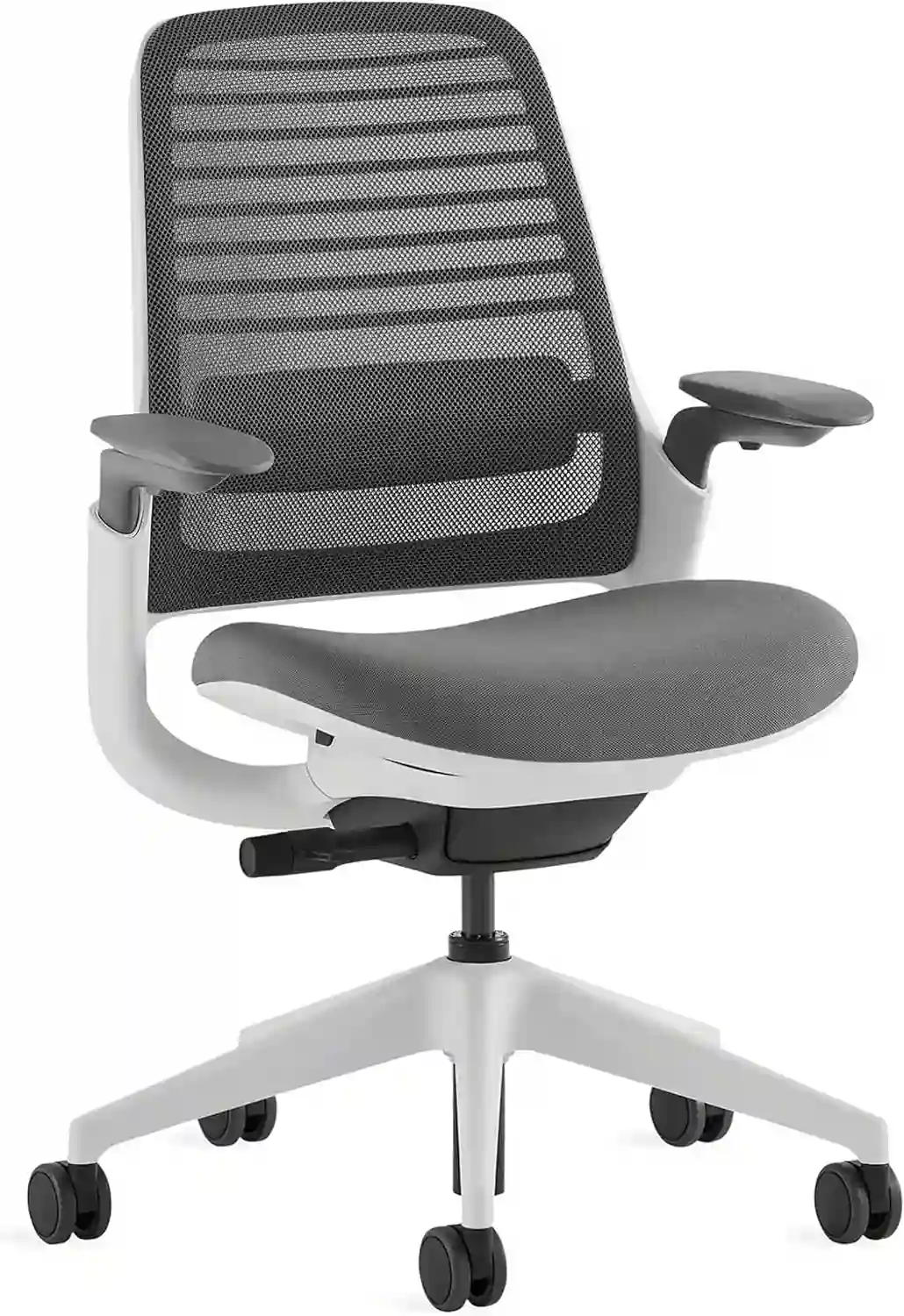
Steelcase Series 1 |
Best for Programmers
A compact ergonomic chair with useful adjustment options for keyboard, mouse, and dual-monitor work. |
|
Premium | Check Price on Amazon |
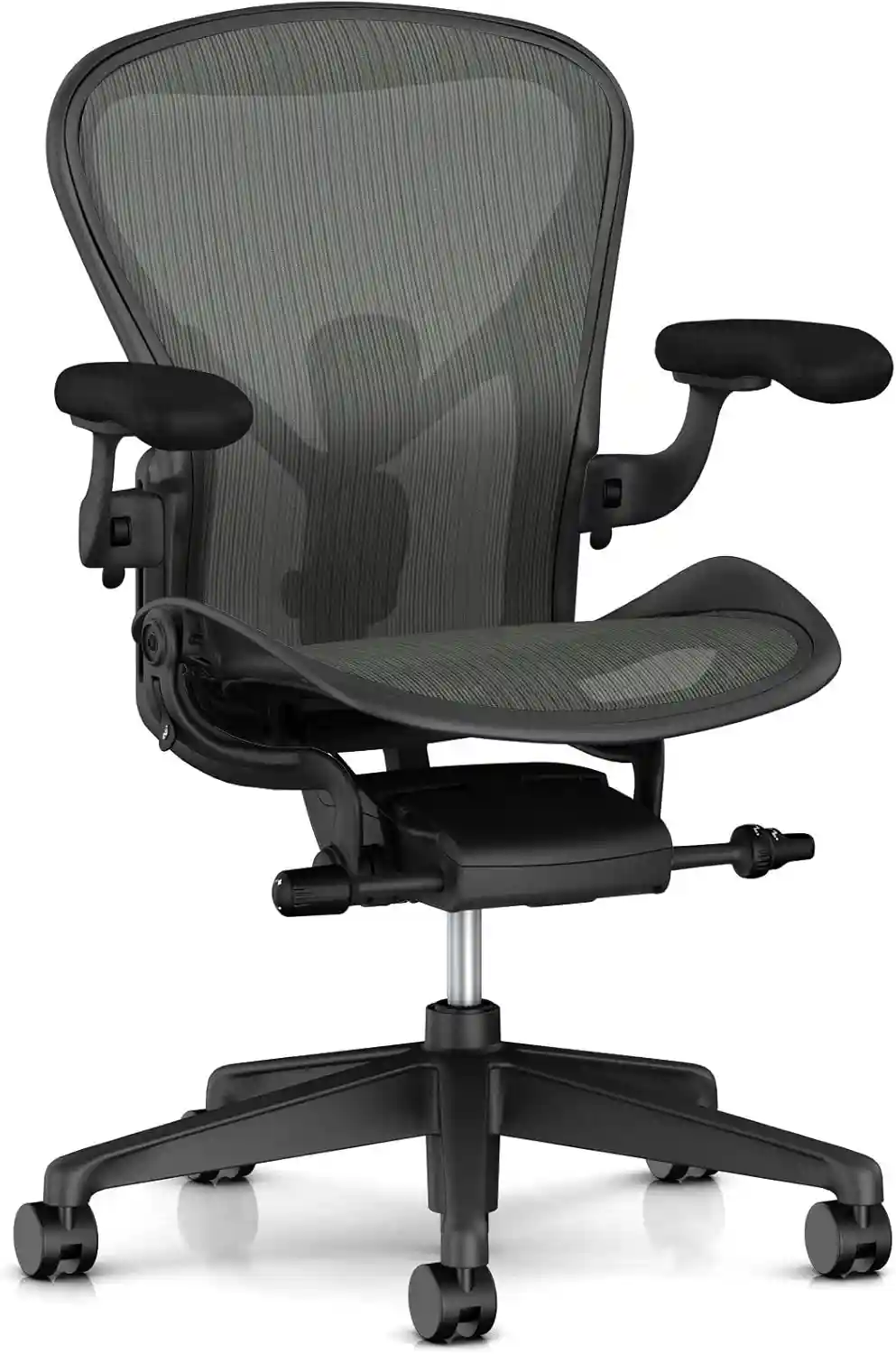
Herman Miller Aeron |
Best Premium Chair
A premium option for users who want multiple chair sizes, breathable suspension material, and extensive configuration choices. |
|
Premium | Check Price on Amazon |
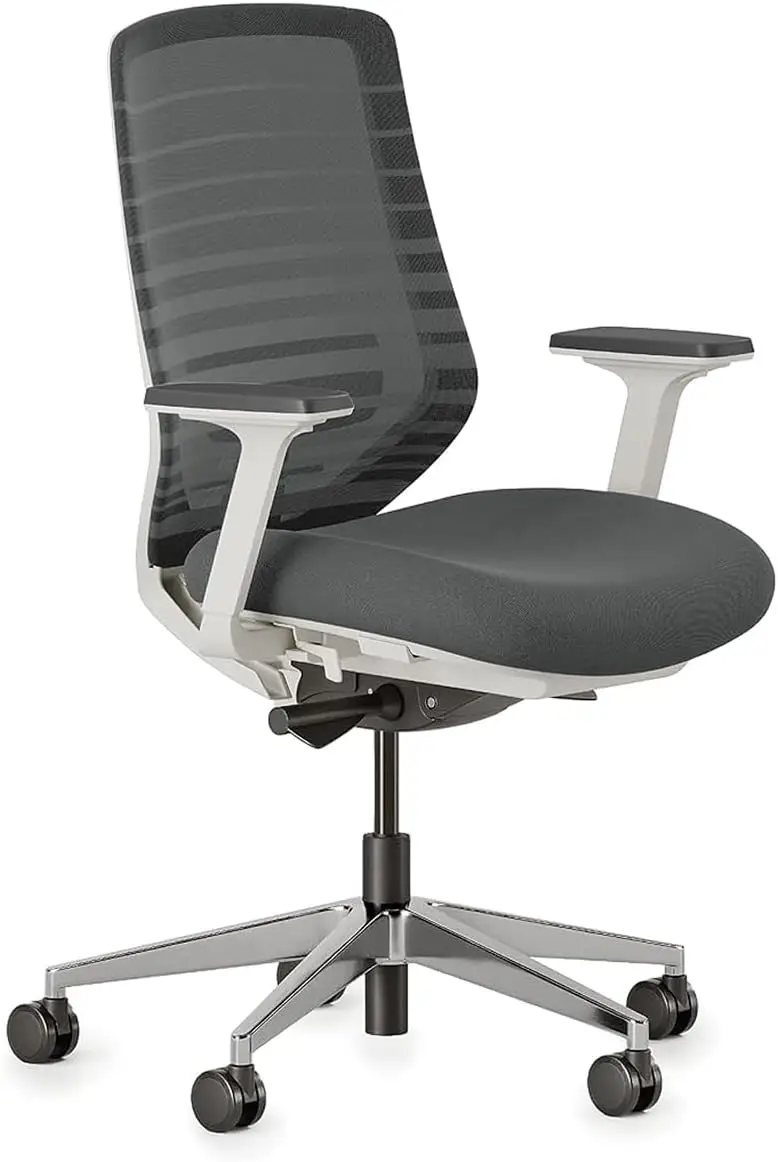
Branch Ergonomic Chair |
Best for Home Offices
A practical mid-range option for remote workers, programmers, writers, and everyday computer work. |
|
Mid-Range | Check Price on Amazon |
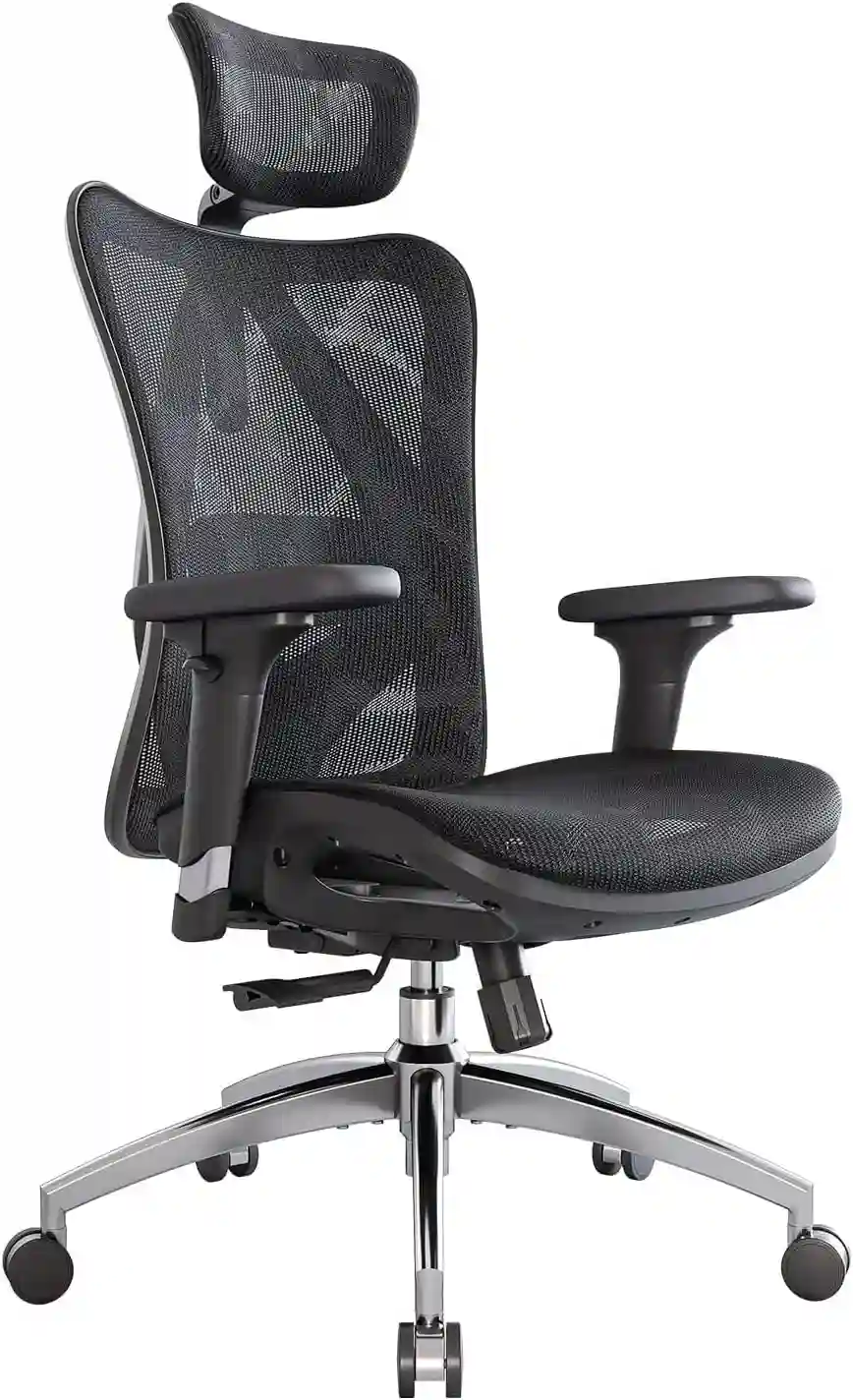
SIHOO M57 |
Best Budget Mesh Chair
A budget-friendly mesh option with adjustable lumbar support and 3D armrests for everyday computer work. |
|
Budget | Check Price on Amazon |
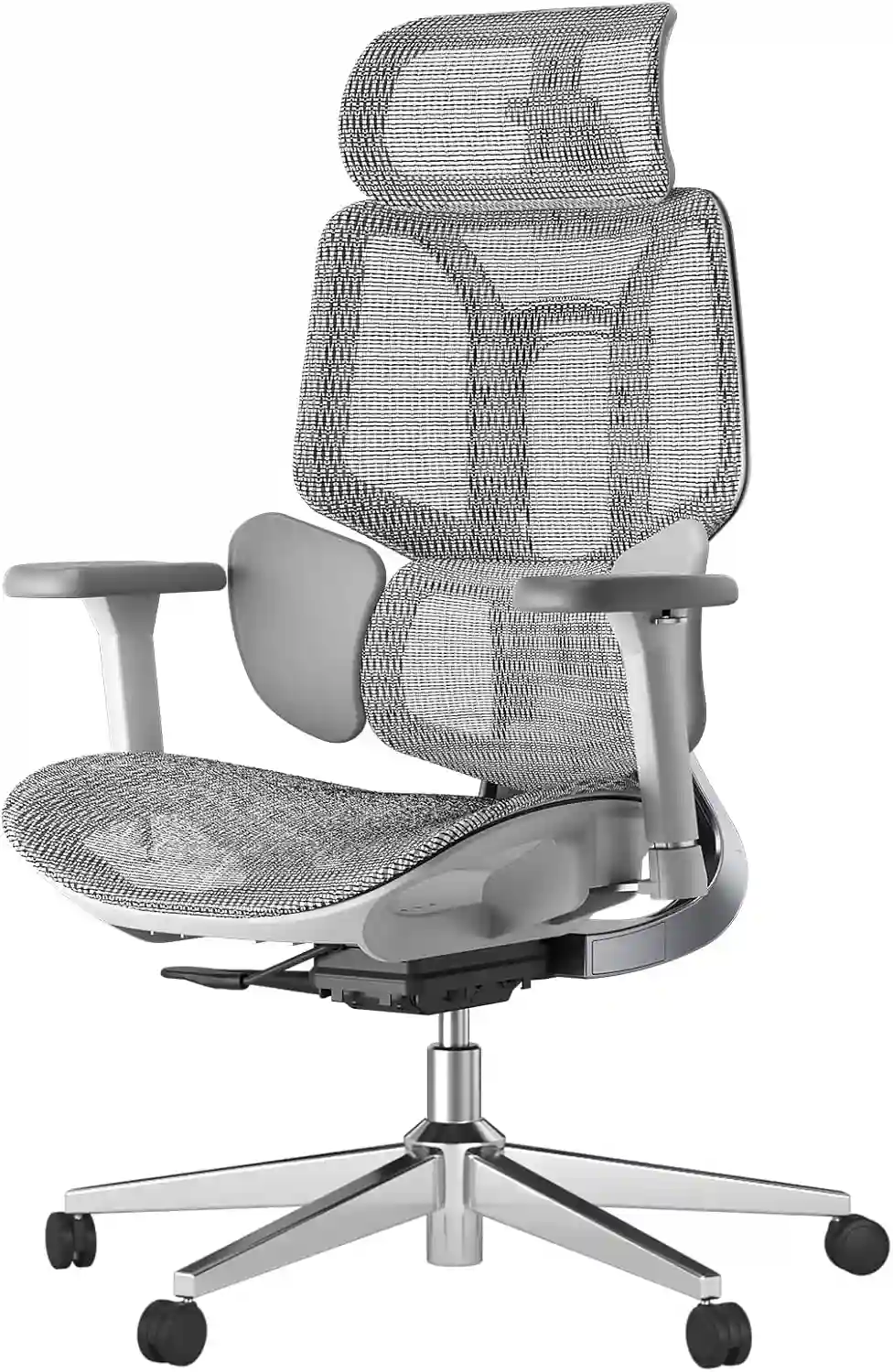
HBADA E3 |
Best for Adjustability
A feature-focused chair for users who want multiple adjustment options for a busy dual-monitor workstation. |
|
Mid-Range | Check Price on Amazon |
Note: Prices, availability, configurations, and product features can change. Check the product page for the latest information before purchasing.
Affiliate Disclosure: This table may contain affiliate links. We may earn a commission from qualifying purchases at no additional cost to you.
Detailed Reviews
Steelcase Series 1 — Best for Programmers and Office Workers
Overview
The Steelcase Series 1 is a particularly interesting choice for a two-monitor workstation because it combines a relatively compact footprint with a useful range of adjustments.
Steelcase describes Series 1 as an entry point into high-performance ergonomic seating. Current configurations include 4D arms, height-adjustable arms, adjustable lumbar options, and two back designs.
Its compact design can be useful when your desk already has limited space for two displays, speakers, a keyboard, and a mouse.
Steelcase Series 1
A compact ergonomic office chair with useful adjustment options for programmers, remote workers, and dual-monitor workstations.
- Adjustable seat height
- Adjustable seat depth
- Adjustable lumbar options
- 4D armrest option
- Recline adjustment
Prices and availability may change. Check Amazon for the latest information.
Key Features
- Adjustable seat height
- Adjustable seat depth
- Adjustable lumbar support on applicable configurations
- 4D armrest option
- Flexible back designs
- Weight-activated tension adjustment
- Optional headrest
Steelcase’s specifications list a seat-height range of approximately 410–520 mm and adjustable seat depth of 420–480 mm for the referenced Series 1 configuration.
Pros
- Excellent range of adjustment for its size
- 4D armrests can be useful for keyboard and mouse work
- Compact footprint
- Multiple back configurations
- Strong warranty options
Cons
- Configuration affects available features
- Premium pricing compared with basic office chairs
- Headrest is optional
Best For
Programmers, writers, analysts, remote workers, and anyone who switches frequently between two screens.
Verdict
The Series 1 is a strong all-around choice when you want ergonomic adjustability without an especially large chair.
Herman Miller Aeron — Best Premium Chair
Overview
The Herman Miller Aeron is one of the most established premium office chairs and remains an excellent option for people building a serious dual-monitor workstation.
One of its biggest advantages is sizing. Aeron comes in A, B, and C sizes, allowing buyers to choose a configuration better suited to their body dimensions.
The chair also uses a suspension-style seat and back, which can appeal to people who prefer a breathable chair rather than thick foam upholstery.
Herman Miller Aeron
A premium office chair designed with multiple sizes and extensive adjustment options for demanding computer work.
- Three chair sizes
- Breathable suspension material
- Adjustable lumbar options
- Fully adjustable arm options
- Recline and tilt adjustment
- 12-year warranty
Price, configuration, and availability can vary. Check Amazon for current details.
Key Features
- Three chair sizes
- Adjustable seat height
- Adjustable lumbar options
- PostureFit SL option
- Height-adjustable or fully adjustable arms
- Multiple tilt options
- 8Z Pellicle suspension material
The manufacturer’s specifications show seat-depth differences between sizes and adjustable arm options. Herman Miller also lists maximum user weights of 300 lb for Size A and 350 lb for Sizes B and C in its product literature.
Pros
- Excellent range of sizing
- Breathable suspension design
- Strong adjustment ecosystem
- Premium build quality
- Multiple arm configurations
Cons
- Expensive
- Some ergonomic features are configuration-dependent
- The seat feel is different from a traditional cushioned chair
- Not necessarily the best choice for every body type
Best For
Professionals, programmers, designers, executives, and people who spend much of the workday at a computer.
Verdict
If budget is less important than long-term build quality and adjustability, Aeron is one of the strongest premium options.
Branch Ergonomic Chair — Best for Home Offices
Overview
The Branch Ergonomic Chair offers a practical middle ground for people who want more adjustability than a basic office chair without moving into ultra-premium pricing.
Branch lists eight points of adjustment, including seat height, seat depth, lumbar adjustment, tilt, and adjustable armrests. The current standard model supports up to 275 pounds and carries a seven-year warranty.
Branch Ergonomic Chair
A practical ergonomic chair for remote workers, programmers, writers, and everyday dual-monitor computer work.
- Adjustable seat height
- Adjustable seat depth
- Adjustable lumbar support
- Adjustable armrests
- Breathable backrest
- Recline and tilt adjustment
Check Amazon for current price and availability.
Key Features
- Adjustable seat height
- Adjustable seat depth
- Removable lumbar support
- Three-way adjustable armrests
- Breathable mesh back
- Synchronous tilt mechanism
- Optional headrest
Pros
- Good feature-to-price balance
- Breathable backrest
- Useful arm adjustment
- Compact dimensions
- Seven-year warranty
Cons
- 275-lb capacity may not suit everyone
- Headrest costs extra
- Less adjustable than some premium alternatives
Best For
Remote workers, home-office users, writers, programmers, and general computer work.
Verdict
The Branch Ergonomic Chair is a sensible choice if you want a modern home-office chair with useful adjustments without paying premium-chair prices.
SIHOO M57 — Best Budget-Friendly Mesh Option
Overview
The SIHOO M57 stands out for buyers who want a feature-rich ergonomic chair at a lower price point.
SIHOO’s current U.S. listing specifies a 330-lb maximum load, 18.11-inch seat depth, 3D armrests, dual-adjustable lumbar support, full mesh construction, and a recline of up to 126 degrees.
That combination makes it interesting for programmers and home-office users who spend extended periods at a computer.
SIHOO M57 Ergonomic Office Chair
A feature-rich mesh chair for budget-conscious buyers building a dual-monitor home office or programming setup.
- Fully breathable mesh design
- Adjustable lumbar support
- 3D adjustable armrests
- Adjustable headrest
- Reclines up to 126°
- 330-lb maximum load
Price and availability may change. Check Amazon for the latest listing.
Key Features
- Full mesh design
- Dual-adjustable lumbar support
- 3D armrests
- Adjustable headrest
- Up to 126° recline
- 330-lb maximum load
- Three-year warranty
Pros
- Strong feature set for the price
- Breathable mesh
- Adjustable lumbar support
- 3D armrests
- Higher listed weight capacity than some competitors
Cons
- Mesh feel is not for everyone
- More affordable construction than premium chairs
- Headrest and other adjustments may not suit every body
Best For
Budget buyers, programmers, students, remote workers, and users who prefer breathable mesh.
Verdict
If you want lots of adjustment without spending several hundred dollars more for a premium chair, the M57 deserves consideration.
HBADA E3 Series — Best for Extensive Adjustability
Overview
The HBADA E3 Series is aimed at users who want a large number of ergonomic adjustments and a more active seating experience.
HBADA currently lists several E3 versions, so buyers need to check the exact model before comparing specifications. The company lists features such as three-zone lumbar support, adjustable arm systems, adjustable headrests, and recline positions reaching up to 140 degrees on the E3 series.
The current E3 listings also show models with a stated maximum weight recommendation of 330 pounds and different dimensions depending on the version.
HBADA E3 Ergonomic Office Chair
A feature-focused ergonomic chair for users who want multiple adjustment options for a busy dual-monitor workstation.
- Adjustable lumbar support system
- Adjustable armrests
- Adjustable headrest
- Multiple recline positions
- Ergonomic backrest design
- Several E3 configurations available
Make sure you select the correct E3 model and check the current Amazon listing.
Key Features
- Three-zone lumbar system
- Adjustable armrests
- Adjustable headrest
- Mesh options
- Multiple recline positions
- Height adjustment
- Several E3 configurations
Pros
- Lots of adjustment possibilities
- Several models to choose from
- High listed weight capacity
- Useful for users who change sitting positions
- Competitive feature set
Cons
- Model differences can be confusing
- More features do not automatically mean a better fit
- Large chair footprint on some configurations
Best For
Feature-focused buyers, gamers who also work, programmers, and users who want extensive adjustment options.
Verdict
HBADA E3 is worth considering if adjustability is your top priority, but compare the exact E3 model rather than treating the series as one identical chair.
Why Chair Choice Matters in a Dual-Monitor Setup
Think of your workstation as a chain:
Chair → Desk → Monitor → Keyboard → Mouse
Changing one part can affect the others.
For example, if your chair is too low, you may raise your shoulders to reach a high desk. If the monitors are too far away, you may lean forward. If the mouse is too far to the side, you may repeatedly reach away from your body.
With two monitors, these problems can become more noticeable because your eyes and head move between screens more frequently.
A good office chair for two monitor setup should therefore let you position your body comfortably while keeping your feet supported, your back supported, and your arms reasonably close to the keyboard and mouse.
For more chair-selection guidance, see our Best Ergonomic Chair Guide and How to Choose the Best Home Office Chair.
How to Set Up Two Monitors Ergonomically
Step 1 — Choose Your Primary Monitor
Put the monitor you use most directly in front of you.
If you spend most of your time coding on one screen and occasionally check email on the other, the coding screen should normally be the primary display.
Step 2 — Position the Second Monitor
Place the secondary monitor beside the primary one rather than far off to the side.
If you frequently use the second screen, angle it toward you so you don’t have to turn your entire body to view it.
Step 3 — Set Monitor Height
Adjust the monitors so you can view them comfortably without constantly bending your neck downward.
Monitor stands or monitor arms can make this much easier.
Step 4 — Set Viewing Distance
Avoid putting your displays excessively close to your face or so far away that you constantly lean forward to read them.
The correct distance depends on screen size, resolution, text size, and your visual comfort.
Step 5 — Position the Keyboard and Mouse
Keep your keyboard and mouse close enough that you don’t need to repeatedly reach forward.
Your mouse should also be positioned where you can use it without constantly extending your shoulder.
Step 6 — Adjust Chair Height
Raise or lower the chair so your feet are comfortably supported and your arms can approach the keyboard without excessive shoulder elevation.
Step 7 — Adjust Armrests
Set the armrests so they support your arms without forcing your shoulders upward.
Adjustable armrests are particularly useful when switching between typing, mousing, reading, and reclining.
Best Chair Features for Dual-Monitor Users
Adjustable Seat Height
The chair should work with your desk. Seat height affects your feet, knees, elbows, keyboard position, and relationship to the monitors.
Adjustable Seat Depth
Seat depth matters because people have different leg lengths. A seat that is too deep can make it harder to sit comfortably against the backrest.
Adjustable Lumbar Support
Adjustable lumbar support allows you to position the support rather than accepting one fixed position.
3D or 4D Armrests
Fixed armrests provide little flexibility.
2D armrests generally adjust in two directions, commonly height and another movement depending on the chair.
3D armrests typically add another adjustment such as depth or rotation.
4D armrests generally add even more movement, often including height, depth, width or pivot adjustments.
The exact movements vary by manufacturer, so check the specifications rather than relying on the label alone.
Recline and Tilt
A chair that allows you to change positions can be useful during long computer sessions. You do not need to remain perfectly upright every minute you are working.
Breathable Backrest
Mesh can be useful in warm rooms because airflow is generally better than with fully upholstered backs.
Headrest
A headrest is optional for most desk work. It can be useful if you frequently recline, but it is not essential for creating a good typing position.
Best Office Chair for Different Dual-Monitor Users
Best Chair for Programmers With Two Monitors
Steelcase Series 1 is a strong choice because its adjustable arms, lumbar options, and compact footprint work well around a coding workstation.
Best Chair for Remote Workers
Branch Ergonomic Chair is a practical home-office option with useful adjustment without moving too far into premium pricing.
Best Chair for Graphic Designers
Herman Miller Aeron is worth considering when long computer sessions and precise fit are priorities.
Best Chair for Video Editors
Look for a chair with adjustable arms, good seat-depth adjustment, and useful recline. Steelcase Series 1 and Branch Ergonomic Chair are both sensible choices.
Best Chair for Stock/Finance Workstations
If you frequently switch between charts and data, arm adjustment and easy repositioning matter. SIHOO M57 offers a strong feature set for buyers who prefer mesh.
Best Budget Chair for Dual Monitors
SIHOO M57 is one of the more feature-heavy options in this group.
Best Premium Chair for Dual Monitors
Herman Miller Aeron is the premium pick for buyers who prioritize sizing, adjustability, and long-term build quality.
Dual Monitor Setup: Common Mistakes to Avoid
- Placing both monitors too far apart
- Keeping the secondary monitor at a very different height
- Turning your neck repeatedly to one side
- Sitting too far from the desk
- Using armrests that are too high
- Setting the chair too low
- Leaning toward one monitor
- Placing the mouse too far away
- Ignoring desk height
- Staying in exactly the same position for too long
The goal isn’t to find one “perfect” position and never move. A better workstation gives you enough adjustment and space to change positions comfortably throughout the day.
For additional workstation ideas, see our Home Office Setup Ideas guide.
Chair + Desk + Monitor Setup Checklist
- Feet comfortably supported
- Chair height adjusted
- Lower back supported
- Shoulders relaxed
- Elbows comfortably positioned
- Primary monitor centered
- Secondary monitor positioned nearby
- Screens at a comfortable height
- Keyboard within easy reach
- Mouse close to the body
- Chair allows comfortable movement and reclining
Mesh vs Cushion for Dual-Monitor Work
| Feature | Mesh Chair | Cushioned/Upholstered Chair |
|---|---|---|
| Breathability | Usually excellent | Usually lower |
| Seat comfort | Depends heavily on mesh design | Often softer initially |
| Long sessions | Good if properly fitted | Good if cushioning suits you |
| Maintenance | Generally easy to clean | Fabric may require more care |
| Hot rooms | Excellent choice | Can feel warmer |
| Feel | Firmer, springier | Softer, more traditional |
| Best For | Warm rooms and airflow | Users who prefer padded seating |
Material is only one part of ergonomic performance. A poorly fitting mesh chair can be less comfortable than a well-fitting cushioned chair.
How Much Should You Spend?
Under $200
Expect basic adjustability, simpler materials, and fewer advanced controls. This range can work for occasional home-office use, but carefully check seat dimensions, lumbar support, armrests, warranty, and return policy.
$200–$500
This is where you can find many strong ergonomic options with better adjustability, materials, and warranty coverage. The SIHOO M57, Branch Ergonomic Chair, and some HBADA models fall around this broader territory depending on current pricing and configuration.
$500+
Premium chairs can offer more refined mechanisms, materials, sizing, warranty coverage, and adjustability. However, a higher price does not automatically mean better ergonomics.
Fit still matters most.
Buying Guide: What to Check Before You Purchase
Before buying an office chair for a two-monitor workstation, check:
- Seat height range
- Seat depth
- Lumbar adjustability
- Armrest adjustment
- Recline mechanism
- Seat cushioning
- Backrest material
- Weight capacity
- Warranty
- Return policy
Don’t buy a chair based only on the word “ergonomic.” Look at the actual adjustment options and whether they fit your body and workstation.
Also check the exact model. A product family can contain several versions with different armrests, headrests, materials, dimensions, and prices.
FAQs
What is the best office chair for a dual monitor setup?
For a premium workstation, the Herman Miller Aeron is a strong overall choice. For a lower price, the SIHOO M57 offers substantial adjustability. The best choice ultimately depends on your body dimensions, desk, budget, and preferences.
Is an ergonomic chair important for two monitors?
It can be helpful because dual-monitor work often involves long periods at a desk and frequent movement between screens. However, the chair is only one part of the workstation.
How should I position my chair with two monitors?
Center yourself around the monitor you use most. Keep the second monitor close enough that you don’t have to repeatedly twist your torso to see it.
Should both monitors be directly in front of me?
Not necessarily. If you use one screen much more frequently, center that screen and place the secondary display beside it. If both are used equally, a more symmetrical arrangement may make sense.
Is a headrest necessary for a dual-monitor setup?
No. A headrest is optional. It can be useful when reclining or taking breaks, but it isn’t required for comfortable keyboard and mouse work.
Are mesh chairs good for dual-monitor work?
Yes, mesh chairs can work very well, particularly in warm rooms. But mesh quality, seat design, lumbar support, and fit are more important than the word “mesh” itself.
What chair features matter most for programmers using two monitors?
Prioritize adjustable seat height, seat depth, lumbar support, armrests, and recline. Adjustable armrests can be especially useful because programmers spend substantial time switching between keyboard and mouse.
Can a bad chair make a dual-monitor setup uncomfortable?
Absolutely. A chair that doesn’t fit you can encourage leaning, reaching, or awkward positioning. But monitor height, desk height, viewing distance, and keyboard/mouse placement can create similar problems.
Conclusion
The best office chair for dual monitor setup isn’t necessarily the most expensive chair on the market.
For most people, the priority should be adjustability and fit. You want a chair that lets you work with your desk and monitor arrangement rather than forcing your body into one fixed position.
Best Overall
Steelcase Series 1 — a well-balanced option for programmers, office workers, and compact dual-monitor workstations.
Best Budget
SIHOO M57 — a feature-rich mesh option with adjustable lumbar support and 3D armrests.
Best Premium
Herman Miller Aeron — excellent for buyers who want multiple sizes and extensive configuration choices.
Best for Programmers
Steelcase Series 1 — especially attractive when adjustable arms and a relatively compact chair are important.
Best for Long Work Sessions
Herman Miller Aeron or Branch Ergonomic Chair — depending on your preferred seat feel, adjustability, body size, and budget.
Ultimately, your chair, desk, monitors, keyboard, and mouse should be treated as one workstation. Adjust the chair first, position the primary monitor in front of you, keep the second screen close, and make sure your keyboard and mouse are within comfortable reach.
Check the latest price and availability before choosing the chair that best fits your workstation.