
You sit down at your desk feeling fine, start answering emails or working on a project, and a few hours later your shoulders feel tight, sore, or uncomfortable.
If this happens regularly, you may start wondering, “Why does my office chair make my shoulders hurt?”
The chair may be part of the problem, but it is not necessarily the only reason. Your chair, desk, monitor, keyboard, mouse, armrests, and sitting habits all work together. If one part of the setup is poorly positioned, you may compensate by raising your shoulders, reaching forward, leaning toward the screen, or holding one position for too long.
The good news is that many workstation problems can be addressed with simple adjustments before you consider buying a new chair.
This guide explains 10 common ergonomic reasons your shoulders may become uncomfortable while working and what you can try to improve your setup.
Quick Answer: Why Can an Office Chair Make Your Shoulders Hurt?
An office chair can contribute to shoulder discomfort when your workstation encourages awkward or unsupported positions.
Common possibilities include:
- Armrests that are too high
- Armrests that are too low
- A desk that is too high
- Keyboard or mouse positioned too far away
- Monitor positioned incorrectly
- Chair height that does not work with your desk
- Leaning forward instead of using the backrest
- Insufficient back support
- A chair that does not fit your body
- Staying in one position for too long
However, shoulder discomfort can have many possible causes, so you should not automatically assume that your office chair is responsible.
The goal of an ergonomic setup is not to force your body into one “perfect” posture. Instead, your workstation should allow you to work comfortably, keep frequently used items within easy reach, and change positions throughout the day.
10 Common Reasons Your Office Chair May Be Causing Shoulder Discomfort
1. Your Armrests Are Too High
One of the simplest things to check is your armrest height.
If your armrests are too high, they may encourage your shoulders to stay elevated while you work. You might notice that your shoulders gradually creep upward, particularly when typing or using a mouse.
Try lowering the armrests until your shoulders can remain relaxed while your elbows and forearms have comfortable support.
For example, if you normally sit at your desk with your shoulders slightly shrugged, lower the armrests and see whether your upper body feels more relaxed.
You do not need to keep your arms rigidly supported at all times. The important thing is that the armrests should not force your shoulders upward.
Simple fix: Lower the armrests and check whether your shoulders naturally relax.
2. Your Armrests Are Too Low
The opposite problem can happen too.
If your armrests are positioned much lower than your comfortable elbow position, your arms may receive little useful support. You may then rely more heavily on your upper body while working.
This can become particularly noticeable during long computer sessions.
Raise the armrests gradually and pay attention to your shoulders. Ideally, you should be able to rest your arms without feeling that your shoulders are being pushed upward.
Your armrests also should not force your elbows into an uncomfortable position.
Simple fix: Adjust the armrests until your elbows and forearms can rest comfortably without shrugging your shoulders.
3. Your Desk Is Too High
Sometimes the chair gets blamed when the desk is actually the bigger issue.
A desk that is too high can force you to raise your arms to reach the keyboard. When this happens, your shoulders may remain elevated while you type.
This is especially common when someone raises their chair to achieve a comfortable leg position but continues using a fixed-height desk.
Try sitting comfortably and placing your hands on the keyboard. Your shoulders should not need to stay shrugged just to reach the work surface.
If the desk is fixed and cannot be adjusted, you may need to find a better relationship between your chair height, keyboard position, and available leg support.
Example: If your feet are comfortable but your shoulders feel raised whenever you type, your desk may be too high for your current setup.
4. Your Keyboard and Mouse Are Too Far Away
Think about what happens when you place your keyboard several inches farther away than necessary.
You have to reach forward.
Do that repeatedly for hours, and your working position may become less comfortable. You may also start leaning toward the screen instead of sitting closer to the desk.
The same issue can occur with your mouse. If the mouse is positioned too far to the side, you may repeatedly reach outward instead of keeping it comfortably close.
Keep your keyboard and mouse within easy reach.
Your frequently used equipment should not require you to stretch your arms forward or sideways every few seconds.
Simple fix: Move the keyboard and mouse closer and check whether you can use them while keeping your shoulders relaxed.
5. Your Monitor Is Positioned Incorrectly
Your monitor can influence your entire upper-body position.
If the screen is too far away, you may lean forward to see it clearly. If it is positioned in an uncomfortable location, you may repeatedly tilt or turn your head.
Over time, this can make your workstation feel uncomfortable.
Place your main monitor directly in front of you when possible, rather than significantly off to one side.
The screen should also be positioned so you can view it comfortably without constantly leaning toward it.
If you use two monitors, consider how often you use each one. The screen you use most should generally be the easiest one to face.
Simple fix: Reposition the monitor before assuming you need a new chair.
6. Your Chair Is Too Low or Too High
Chair height affects more than your legs.
It also affects how your arms interact with your desk.
If your chair is too low, you may need to raise your arms to reach a high desk. If your chair is too high, your feet may not be comfortably supported and your overall working position may feel awkward.
Start by adjusting the chair so your feet are comfortably supported and your legs feel relaxed.
Then check your relationship with the desk, keyboard, and mouse.
Remember that a chair cannot always compensate for a poorly matched desk. The goal is to find a workable position for your entire workstation rather than focusing on chair height alone.
Simple fix: Adjust the chair height, then reassess your elbows, shoulders, feet, and desk position together.
7. You Are Leaning Forward While Working
Even a well-designed office chair cannot help much if you spend most of your working day sitting several inches away from its backrest.
Leaning forward may happen without you noticing.
You might move closer to the monitor when concentrating, lean toward your laptop, or sit on the front edge of the seat while typing.
Try using the backrest when appropriate and position your monitor and keyboard so you do not constantly need to lean toward them.
You also do not need to maintain one perfectly upright position all day. A comfortable workstation should allow you to change positions.
Simple fix: Move the chair closer to the desk and bring your monitor and keyboard into a more convenient position.
8. Your Chair Does Not Provide Enough Back Support
Your backrest is another part of the setup worth checking.
If the backrest does not support you comfortably, you may constantly adjust your position. Some people respond by leaning forward, sitting toward the front of the seat, or shifting from side to side.
The problem may not necessarily be that the chair is “bad.” It may simply not provide the type or amount of adjustment that works for your body and working habits.
If your chair has adjustable recline, tilt, lumbar support, or backrest tension, experiment with those settings.
The purpose is to create a comfortable working position rather than forcing yourself into a rigid posture.
For additional information, see our guide to How to Choose an Ergonomic Chair.
9. Your Chair Does Not Fit Your Body
Office chairs are not one-size-fits-all.
Two people can sit in the same chair and have completely different experiences.
Seat depth is one important factor. A seat that is too deep may make it difficult for a shorter user to sit comfortably against the backrest. A seat that is too shallow may provide less thigh support for a taller user.
Armrest position matters too.
You should consider:
- Seat height
- Seat depth
- Seat width
- Armrest adjustment
- Backrest height
- Lumbar adjustment
- Recline range
- Overall chair adjustability
A chair with several useful adjustments can be easier to fit than one with very limited adjustment options.
If you spend many hours at a desk, Best Chair for Long Hours can help you understand which features are worth considering.
10. You Stay in One Position for Too Long
Sometimes the problem is not one particular chair setting.
It is how long you remain in the same position.
Even a comfortable workstation can become uncomfortable if you barely move for several hours.
Instead of trying to discover one perfect sitting position, make movement part of your work routine.
Stand up when practical. Walk around during natural breaks. Change your sitting position. Move your shoulders and arms comfortably. Alternate between tasks when possible.
You do not need complicated equipment to make your workstation more dynamic.
Simple fix: Avoid staying in exactly the same position throughout a long work session.
How to Adjust Your Office Chair to Reduce Shoulder Strain
Once you understand the possible causes, you can work through your setup systematically.
Step 1: Set Your Chair Height
Start with your feet.
Adjust the chair so your feet are comfortably supported and your legs feel relaxed. Then check how your arms interact with the desk.
Do not adjust chair height based only on your monitor.
The chair and desk need to work together.
Step 2: Adjust the Armrests
Place your hands where they normally sit when typing.
Relax your shoulders.
If your shoulders rise, the armrests may be too high. If your arms hang without useful support, they may be too low.
Make small adjustments rather than moving them dramatically.
Step 3: Adjust Seat Depth
Sit toward the back of the chair and check whether the seat supports your thighs comfortably.
You should be able to use the backrest without feeling pushed too far away from your desk.
If the seat is very deep, you may find yourself moving forward to reach the keyboard.
Step 4: Adjust the Backrest
Use the backrest as part of your working position.
If your chair has recline or tilt adjustment, find a setting that feels comfortable for your work.
Avoid thinking that you must sit completely rigidly upright for the entire day.
Step 5: Check Desk Height
Place your hands on the keyboard.
Look at your shoulders.
Are they relaxed, or are they raised?
If your shoulders naturally rise when you reach the keyboard, investigate the desk height and your chair position.
Step 6: Position Your Keyboard and Mouse
Move frequently used equipment close enough that you can use it without repeatedly reaching forward.
Your mouse should also be close enough that you do not need to stretch your arm outward for long periods.
Step 7: Position the Monitor
Put the monitor where you can view it comfortably.
Avoid placing your main screen significantly off to one side if you spend most of your day looking at it.
If you are constantly moving your head or leaning forward to see the display, the monitor deserves another adjustment.
What Should Your Shoulders Feel Like While Sitting?
There is no single posture that works perfectly for every person.
However, a comfortable workstation often allows you to maintain a relaxed upper body.
Use this checklist:
- Your shoulders feel relaxed rather than constantly shrugged.
- Your elbows are comfortably positioned.
- Your wrists can remain relatively neutral while typing.
- Your feet have comfortable support.
- Your back can make use of the chair’s backrest.
- Your monitor is easy to view.
- Your keyboard and mouse are within comfortable reach.
- You can change positions throughout the day.
Think of these points as a practical guide rather than strict rules.
Chair vs Desk: Which One Is Actually the Problem?
This is one of the most important things to understand.
People often replace their office chair when the real problem is elsewhere.
For example, you could have a high-quality ergonomic chair but still experience an uncomfortable workstation if your desk is too high.
Other possible trouble spots include:
- Monitor height
- Keyboard position
- Mouse position
- Desk depth
- Laptop placement
- Armrest height
- Chair-to-desk distance
Your chair and desk should be treated as one system.
Before spending money on another chair, spend a few minutes checking the complete setup.
Laptop Users: Why Shoulder Discomfort Can Be Common
Laptop users face a special ergonomic challenge.
The screen and keyboard are attached to the same device. If you raise the laptop to create a more comfortable screen position, the keyboard rises too.
If you place the laptop low enough for comfortable typing, you may end up looking downward at the screen.
An external keyboard and mouse can help separate these two positions.
For example, you could place the laptop on a suitable stand while using an external keyboard and mouse at desk level.
This gives you more flexibility to position the display and input devices separately.
You do not necessarily need an expensive workstation. The goal is simply to make the screen, keyboard, and mouse easier to position comfortably.
How to Make a Poorly Adjustable Office Chair More Comfortable
You do not always need to replace your chair immediately.
Try these low-cost changes first:
- Adjust the chair height.
- Move the chair closer to the desk.
- Reposition the armrests if they are adjustable.
- Bring the keyboard and mouse closer.
- Reposition the monitor.
- Raise a laptop using an appropriate laptop stand.
- Consider an external keyboard and mouse for laptop work.
- Use the backrest rather than constantly sitting on the front edge.
- Change positions regularly.
- Take natural movement breaks throughout the workday.
Avoid making unsafe modifications to the chair, such as altering structural components or using unstable objects to change the chair’s height.
Small workstation changes can sometimes make a bigger practical difference than buying another chair.
When Should You Consider Replacing Your Office Chair?
Replacing your chair may make sense if it consistently prevents you from creating a comfortable workstation.
Look for signs such as:
- Very limited adjustability
- Armrests that cannot be positioned comfortably
- A seat that does not fit your body
- A backrest that does not work with your preferred working position
- A damaged or unstable chair
- Insufficient seat adjustment
- Difficulty getting the chair and desk to work together
- Discomfort that repeatedly occurs despite reasonable workstation adjustments
You do not need the most expensive chair available.
In many cases, adjustability and proper fit are more useful than simply choosing a premium-looking chair.
What Features Should You Look for in a New Office Chair?
If you decide that a new chair is appropriate, focus on features that allow you to customize the chair.
Useful features can include:
Adjustable Armrests
Look for armrests that can be positioned comfortably rather than fixed at one height.
Adjustable Seat Height
This helps you find a workable relationship between your chair and desk.
Adjustable Seat Depth
Seat-depth adjustment can be particularly useful because people have different leg lengths.
Supportive Backrest
A backrest should allow you to sit comfortably while working rather than constantly pushing you forward.
Adjustable Lumbar Support
Adjustability can make it easier to personalize the backrest.
Recline or Tilt Adjustment
A chair that allows some change in position can be useful for people who do not want to remain rigidly upright.
Appropriate Seat Width
The seat should provide enough room without making it difficult to use the armrests or desk comfortably.
Comfortable Cushioning or Mesh
Both cushioning and mesh can work well. Personal preference, climate, and chair design all matter.
Stable Base
A stable chair is important for normal everyday use.
Appropriate Weight Capacity
Always check the manufacturer’s stated weight capacity and choose a chair appropriate for the intended user.
Good Warranty and Return Policy
A return policy can be especially valuable because a chair that looks comfortable online may not fit your body once you actually sit in it.
SIHOO Doro C300 Ergonomic Office Chair
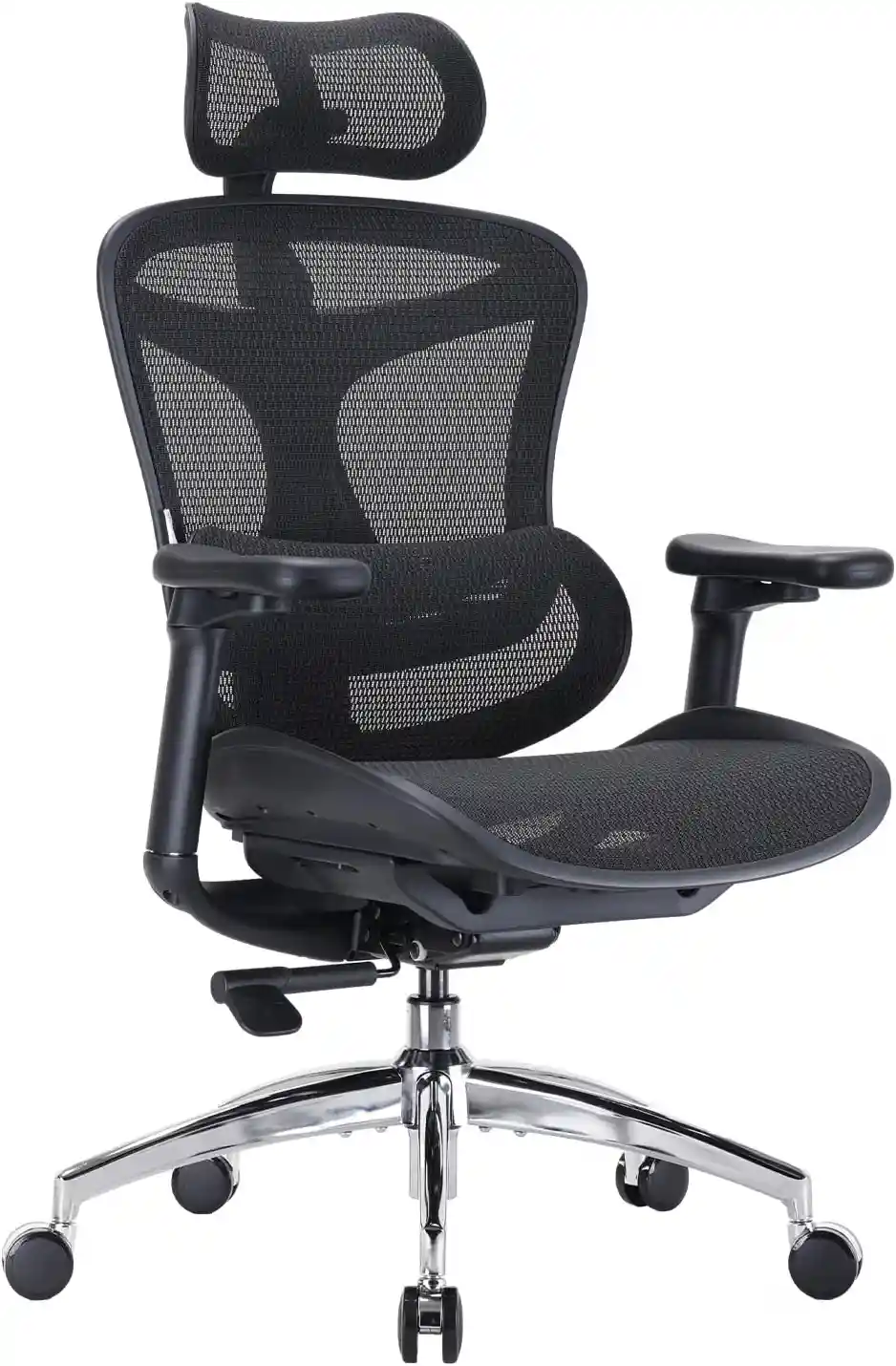
Looking for an adjustable office chair for your home or work setup? The SIHOO Doro C300 features adjustable armrests, seat-depth adjustment, a flexible backrest and recline adjustment, giving you more ways to personalize your workstation.
- Adjustable armrests for a more personalized arm position
- Adjustable seat depth for different body sizes
- Flexible backrest and reclining adjustment
- Breathable mesh design
- Designed for home-office and computer work
As an Amazon Associate, we may earn from qualifying purchases. Product availability and pricing may change.
Recommended Office Chair Types for Shoulder Comfort
There is no universally best chair type for shoulder comfort. Different users may prefer different designs.
Adjustable Ergonomic Chair
Best for: People who want multiple adjustment options.
An ergonomic chair with adjustable armrests, seat height, seat depth, backrest, and recline can make it easier to create a workstation that fits your body.
Mesh Ergonomic Chair
Best for: People who prefer a breathable chair.
Mesh can feel comfortable in warm environments and may provide a different sitting experience from traditional padded chairs.
For more information, see our guide to Best Mesh Office Chair and Mesh vs Leather Office Chair.
Executive Chair
Best for: Users who prioritize cushioning and a larger chair design.
Executive chairs can feel comfortable and substantial, but some models offer fewer ergonomic adjustments than dedicated ergonomic chairs.
Do not assume a larger or more expensive chair is automatically better for your workstation.
Task Chair
Best for: Users who want a simpler, practical office chair.
A good adjustable task chair may work perfectly well for someone who does not need numerous premium features.
Again, fit and adjustability matter more than the name of the chair category.
How Often Should You Move While Working?
Try not to treat your chair as a place where you must remain frozen for hours.
Changing positions throughout the day can make your workstation routine more comfortable.
Stand up during natural breaks. Walk around when practical. Switch between tasks. Adjust your sitting position. If you have a height-adjustable desk, you can also alternate between sitting and standing when appropriate.
The key idea is simple: avoid spending the entire workday in exactly the same position.
FAQs
Why does my office chair make my shoulders hurt?
Your chair may contribute to discomfort if the armrests, seat height, backrest, or overall fit encourage an awkward working position. However, your desk, monitor, keyboard, mouse, and sitting habits can also play a role.
Can high armrests cause shoulder discomfort?
They can contribute to discomfort for some people if they keep the shoulders elevated. Try lowering the armrests until your shoulders can relax while your arms remain comfortably supported.
Should my shoulders touch the chair?
Not necessarily. Your shoulders do not need to be pressed against the chair. The goal is a comfortable position where your back can use the backrest and your shoulders can remain relaxed.
How high should office chair armrests be?
Adjust them so your arms can rest comfortably without forcing your shoulders upward. Check the position while using your keyboard and mouse rather than adjusting the armrests in isolation.
Can a desk that is too high cause shoulder pain?
A desk that is too high may encourage you to raise your arms and shoulders while working. If your shoulders remain elevated when typing, check the relationship between your chair and desk.
Can a bad monitor position affect my shoulders?
An inconvenient monitor position may encourage you to lean forward, turn your head, or otherwise change your working position. Repositioning the monitor can sometimes improve the overall workstation setup.
Should I replace my office chair if my shoulders hurt?
Not necessarily. First check your chair height, armrests, desk height, monitor position, keyboard, mouse, and sitting habits. If the chair remains difficult to adjust or does not fit your body, replacing it may be worth considering.
When to Seek Professional Help
Ergonomic adjustments are useful for improving a workstation, but they are not a substitute for professional medical evaluation.
Consider speaking with a healthcare professional if your discomfort persists despite reasonable workstation changes, becomes severe or gets worse, follows an injury, significantly interferes with normal activities, or occurs with other concerning symptoms.
Do not assume that an office chair is the cause of ongoing or significant shoulder discomfort. There can be many possible reasons for discomfort, and a healthcare professional can provide advice appropriate to your situation.
Conclusion
If you keep asking, “Why does my office chair make my shoulders hurt?”, do not immediately assume that you need to buy a new chair.
Start by checking your complete workstation.
Look at these seven areas:
- Chair height
- Armrest position
- Desk height
- Monitor placement
- Keyboard and mouse position
- Backrest and seat fit
- How often you change positions
A chair is only one part of an ergonomic workstation. Even an expensive chair may feel uncomfortable if the desk is too high, the monitor is poorly positioned, or the keyboard is too far away.
Make one adjustment at a time and pay attention to how your workstation feels during normal work.
If you eventually decide that your chair simply does not fit your body, look for one with useful adjustment options rather than choosing a chair based only on appearance or price.
For a broader workstation guide, you can also explore Home Office Setup Ideas and learn How to Adjust Your Office Chair for Perfect Posture.
The goal is not to find a magical chair or a single perfect sitting position. It is to create a workstation that lets you work comfortably, change positions, and make practical adjustments throughout your day.
Affiliate Disclosure: Some links on this website may be affiliate links. If you purchase through an affiliate link, we may earn a commission at no additional cost to you. Our recommendations are based on product features and usefulness, not on the commission alone.